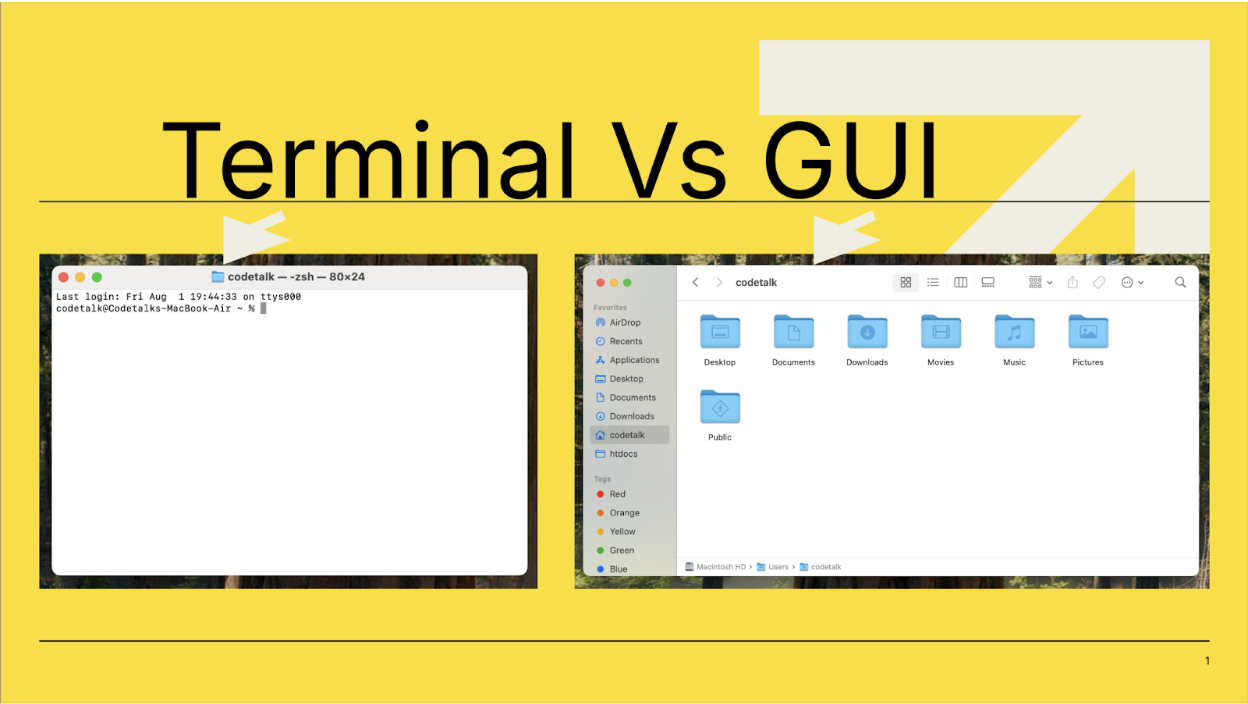
We are slowly making our way through the 4th week of the program and have just entered module 4. It feels like I’m entering the meat and potatoes part of the program, diving into the inner workings of development environments and HTML.
It was interesting to learn about the Terminal (Command Line Interfaces) and Graphical User Interfaces. During my early college days, when I was learning HTML, my professor didn’t explain this key distinction or many of the concepts that followed. I love how advanced the terminal can be, as it has the power to change the inner workings of your entire computer. However, as someone who learns best through visual association, the GUI (Graphical User Interface) was the interface I was accustomed to using for editing, even though I had no idea what the term meant or that it even had a text-based counterpart.
There are several challenging aspects to working with the terminal, and much of the difficulty stems from learning the vocabulary and becoming acquainted with the language to understand what it means for the overall picture. The terminology alone can be overwhelming, and words like “directory,” “path,” and “repositories” all have specific meanings that you need to internalize before you can effectively navigate the system. If you’re even one space off in your terminal command, it could potentially damage your entire system, and it’s so easy to make this mistake without even realizing what went wrong if you don’t understand the commands being used.
To set up the terminal, we first need to locate it in our Mac’s Dock or search bar, as it comes pre-installed and cannot be uninstalled; it’s an essential part of the operating system. Once you locate the Terminal application and double-click to open it, you are immediately placed into the user profile that exists within the operating system. Each user account on the Mac has its own separate terminal environment, which means that commands and file access are restricted to that specific user’s permissions and home directory. Within this environment, you are operating in what’s called the “shell” of the user folder, a command-line interface that interprets the text commands you type and executes them if the correct syntax and characters are entered. The shell acts as an intermediary between you and the operating system, translating your typed commands into actions the computer can understand and perform. From this command-line interface, you can perform a wide range of tasks: creating and editing files, moving and copying files between directories, navigating through the entire file system, managing permissions, installing software, and even performing advanced server management tasks. What might take multiple clicks and window navigation in a GUI can often be accomplished with a single command in the terminal, making it an incredibly powerful tool once mastered.
This was a great start to understanding not only my computer and its operating system, but also understanding these concepts helps build a solid foundation for web development and programming in general.